Excel Cleaner
In this tutorial we will build an Excel cleaner — a web app where you upload any .xlsx file, browse its sheets, apply common cleaning operations, and download the result as a CSV.
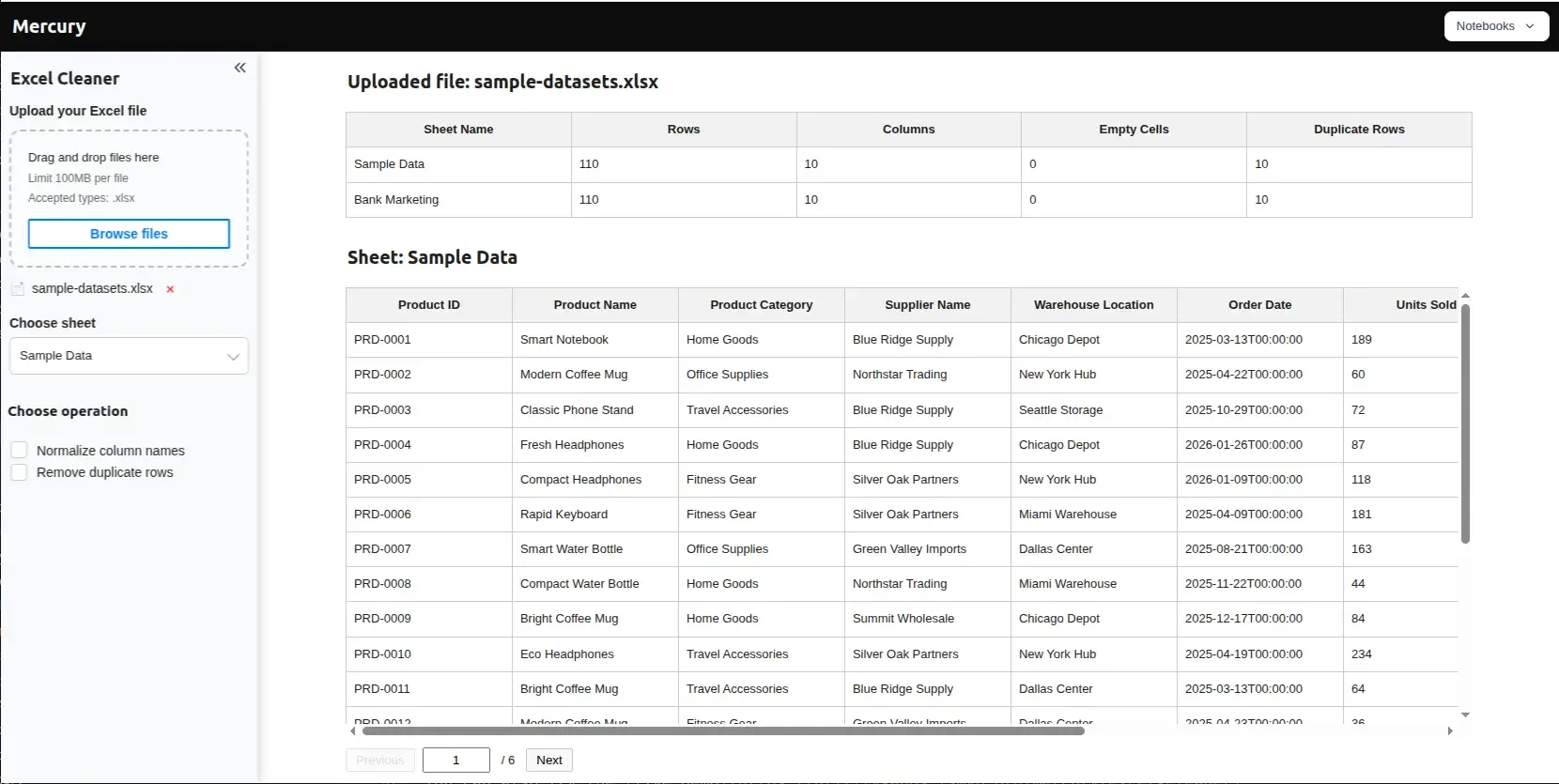
No code, no Excel macros, no manual find-and-replace. Just upload, click, and download.
We will use:
- pandas for reading the Excel file and applying cleaning operations,
- Mercury to turn the notebook into a web app with file upload, sheet selection, checkboxes, and a download button.
The full notebook code is available in our GitHub repository.
You can also try the live demo.
What the app shows
Section titled “What the app shows”After the user uploads an Excel file, the app displays:
- Sheets overview — a table listing every sheet with row count, column count, empty cells, and duplicate rows.
- Sheet selector — a dropdown to pick which sheet to inspect and clean.
- Original data preview — the raw content of the chosen sheet.
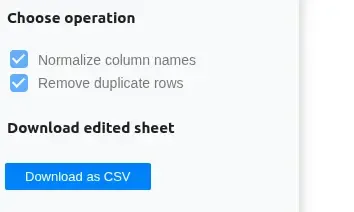
- Cleaning options — checkboxes in the sidebar to normalize column names and/or remove duplicate rows.
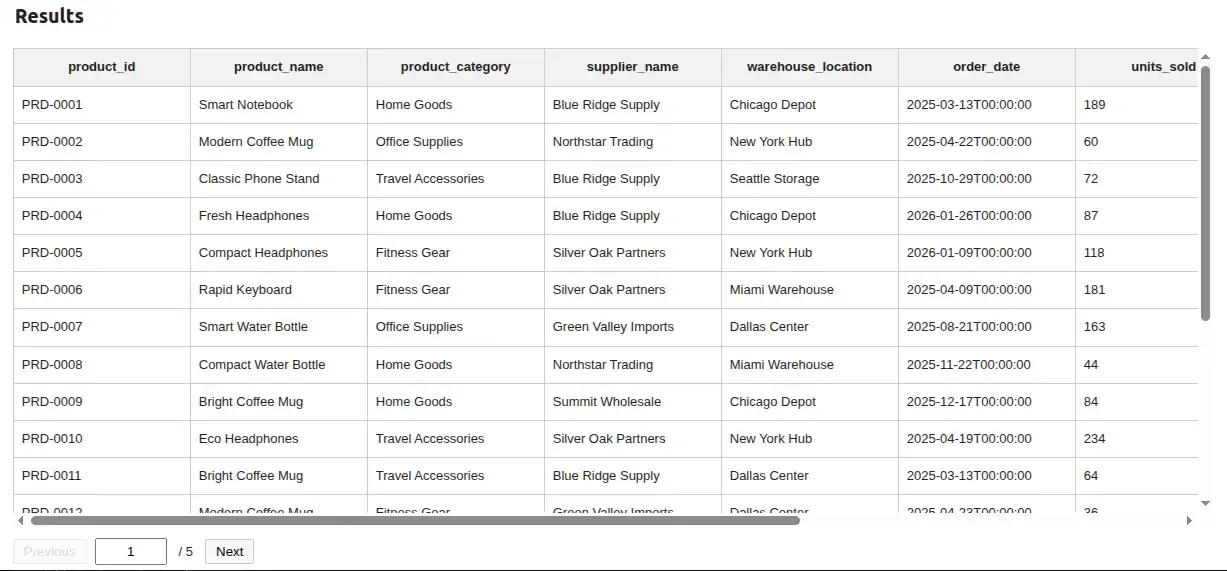
- Results table — the cleaned data, updated live as the user toggles options.
- Download button — exports the cleaned sheet as a CSV file.
1. Install packages
Section titled “1. Install packages”pip install mercury pandas openpyxl2. Import libraries
Section titled “2. Import libraries”import mercury as mrfrom IPython.display import clear_outputclear_output from IPython is used to hide empty cells when no file has been uploaded yet, keeping the app clean on first load.
3. Add the file upload widget
Section titled “3. Add the file upload widget”file = mr.UploadFile(label="Upload your Excel file", accept=".xlsx")UploadFile renders a file picker in the app sidebar, restricted to .xlsx files.
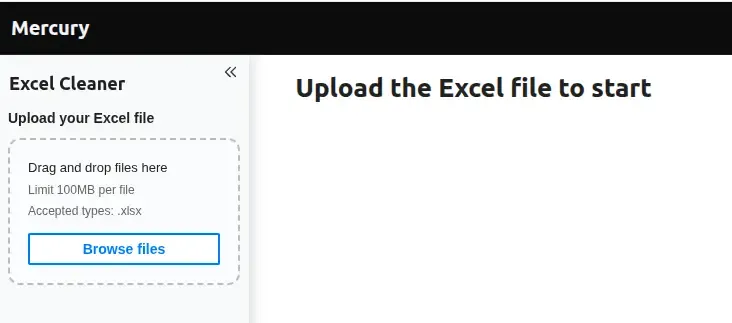
When the user picks a file:
file.namebecomes the filename (non-empty string),file.valuecontains the raw file bytes.
Mercury automatically re-runs the notebook when the upload changes, so all cells below react immediately.
4. Define the cleaning functions
Section titled “4. Define the cleaning functions”Two operations the user will be able to toggle: normalize column names and remove duplicate rows.
Normalizing column names
Section titled “Normalizing column names”import reimport unicodedata
def normalize_column_name(column_name): # Convert to string column_name = str(column_name)
# Remove accents column_name = unicodedata.normalize("NFKD", column_name) column_name = column_name.encode("ascii", "ignore").decode("ascii")
# Convert to lowercase column_name = column_name.lower()
# Remove extra spaces column_name = column_name.strip()
# Replace special characters with _ column_name = re.sub(r"[^a-z0-9]+", "_", column_name)
# Remove _ from start and end column_name = column_name.strip("_")
return column_name
def normalize_column_names(df): df = df.copy() df.columns = [normalize_column_name(col) for col in df.columns] return dfThis turns something like "Customer Name (€)" into customer_name. Useful when the Excel file was filled out by hand and column headers contain accents, mixed casing, or punctuation that breaks downstream code.
We will also reuse normalize_column_name later for the downloaded filename, so that sheet names with spaces or special characters don’t end up in the CSV name.
Removing duplicate rows
Section titled “Removing duplicate rows”def remove_duplicate_rows(df): df_clean = df.copy() df_clean = df_clean.drop_duplicates() return df_cleanStraightforward pandas — nothing unusual here.
5. Read the Excel file and collect per-sheet stats
Section titled “5. Read the Excel file and collect per-sheet stats”if file.name is not None: import pandas as pd from io import BytesIO data = BytesIO(file.value) excel = pd.ExcelFile(data) sheet_names = excel.sheet_names sheets_info = [] df_list = [] ready_df = []
for sheet_name in excel.sheet_names: df = pd.read_excel(data, sheet_name=sheet_name) df_list.append(df) ready_df.append(df) rows = df.shape[0] columns = df.shape[1] empty_cells = df.isna().sum().sum() duplicate_rows = df.duplicated().sum()
sheets_info.append({ "Sheet Name": sheet_name, "Rows": rows, "Columns": columns, "Empty Cells": empty_cells, "Duplicate Rows": duplicate_rows })
sheets_info_df = pd.DataFrame(sheets_info)We wrap the raw bytes in BytesIO so pandas can read them directly, without saving the file to disk first. Two lists are kept in parallel:
df_list— the original, untouched DataFrames (used for the “before” preview),ready_df— the working copies that cleaning operations modify.
This way the user can always see what changed.
6. Show the welcome message or file title
Section titled “6. Show the welcome message or file title”if file.name is None: _ = mr.Markdown("# Upload the Excel file to start")else: _ = mr.Markdown(f"# Uploaded file: {file.name}", key='title_md')A simple branch: when nothing has been uploaded yet, show the welcome heading; otherwise show the filename of the uploaded workbook.
mr.Markdown(...) renders immediately, so no display() wrapper is needed.
Assigning its returned widget to _ prevents IPython from displaying the last
expression a second time. The same pattern appears in every conditional cell
below.
7. Show the sheets overview
Section titled “7. Show the sheets overview”if file.name is not None: sheets_info_table = mr.Table(sheets_info_df, page_size=20, key='sheets-info')else: clear_output()Table renders the per-sheet stats as a clean HTML table. clear_output() hides the cell entirely when there’s no file yet, so the app doesn’t leave empty gaps on first load.

8. Let the user pick a sheet
Section titled “8. Let the user pick a sheet”if file.name is not None: sheet_select = mr.Select(label="Choose sheet", choices=sheet_names)else: clear_output()Select renders a dropdown in the sidebar populated with the sheet names from the uploaded file.
We use sheet_names.index(sheet_select.value) later to look up the right DataFrame from df_list and ready_df.
9. Preview the original sheet
Section titled “9. Preview the original sheet”if file.name is not None: _ = mr.Markdown(f"## Sheet: {sheet_select.value}", key='sheet_md')else: clear_output()if file.name is not None: oryginal_data_table = mr.Table( df_list[sheet_names.index(sheet_select.value)], page_size=20, key=f"oryginal-df-{sheet_select.value}" )else: clear_output()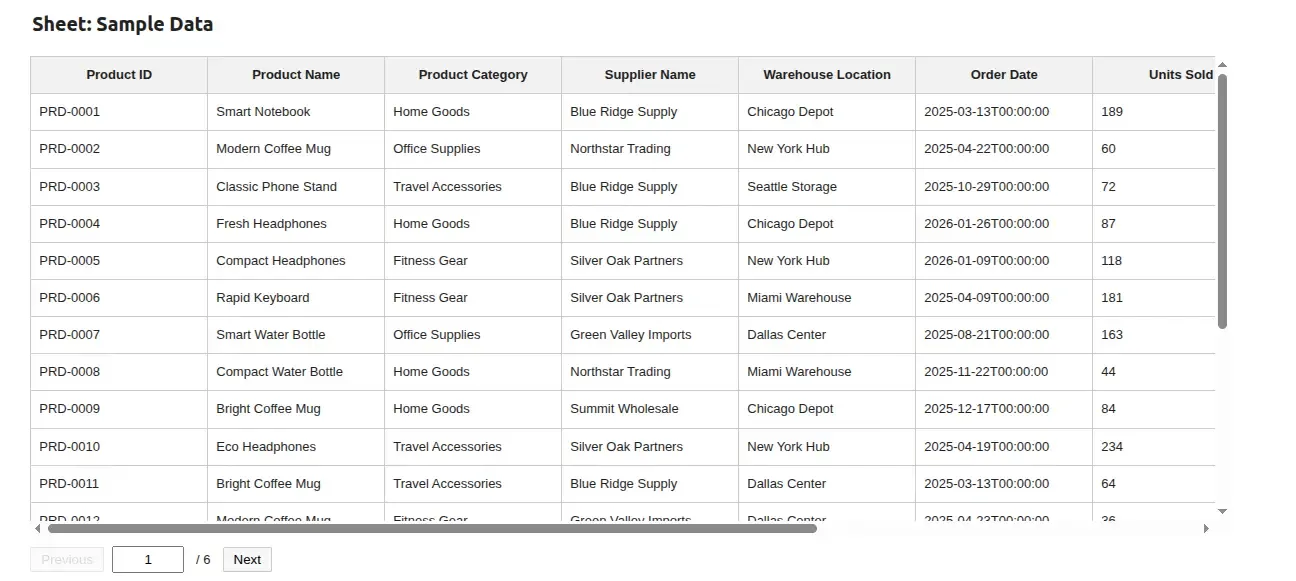
Note the dynamic key — it includes the sheet name. Mercury uses key to identify widgets across re-runs, and varying it per sheet forces the table to fully re-render when the user switches sheets.
10. Add the cleaning checkboxes
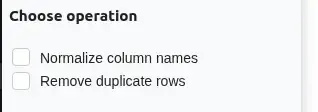
Section titled “10. Add the cleaning checkboxes”if file.name is not None: _ = mr.Markdown("### Choose operation", position="sidebar", key='checkboxes') normalize_col_names_checkbox = mr.CheckBox( label="Normalize column names", appearance="box", key=f"normalize_col_names_checkbox-{sheet_select.value}" ) remove_duplicate_rows_checkbox = mr.CheckBox( label="Remove duplicate rows", appearance="box", key=f"remove_duplicate_rows_checkbox-{sheet_select.value}" )else: clear_output()CheckBox with appearance="box" renders as a tappable card rather than a plain checkbox. position="sidebar" keeps the controls grouped with the file upload.
Including sheet_select.value in the key means the checkboxes reset whenever the user switches to another sheet — exactly what you want, since the cleaning state shouldn’t leak across sheets.
11. Apply the selected operations
Section titled “11. Apply the selected operations”if file.name is not None: if normalize_col_names_checkbox.value: normalize_col_names_checkbox.disabled = True ready_df[sheet_names.index(sheet_select.value)] = normalize_column_names( ready_df[sheet_names.index(sheet_select.value)] )
if remove_duplicate_rows_checkbox.value: remove_duplicate_rows_checkbox.disabled = True ready_df[sheet_names.index(sheet_select.value)] = remove_duplicate_rows( ready_df[sheet_names.index(sheet_select.value)] )Each operation:
- Checks if the user ticked the box.
- Disables the box so it can’t be toggled off mid-pipeline (the operation has already been applied).
- Updates the working DataFrame in-place for the current sheet.
The disabling step is a small UX touch — once you’ve cleaned the data, you can’t “untick” your way back to the original; you’d need to refresh.
12. Show the cleaned results
Section titled “12. Show the cleaned results”if file.name is not None: if normalize_col_names_checkbox.value or remove_duplicate_rows_checkbox.value: _ = mr.Markdown("## Results", key='results') edited_data_table = mr.Table( ready_df[sheet_names.index(sheet_select.value)], page_size=20, key=f"results-table-{sheet_select.value}" ) else: clear_output()The results table only appears once at least one cleaning option is active. Until then the user just sees the original preview, which avoids visual clutter on first load.
13. Add the download button
Section titled “13. Add the download button”if file.name is not None: csv_data = ready_df[sheet_names.index(sheet_select.value)].to_csv(index=False)if file.name is not None: if normalize_col_names_checkbox.value or remove_duplicate_rows_checkbox.value: _ = mr.Markdown("### Download edited sheet", position="sidebar", key='download') mr.Download( data=csv_data, filename=f"{normalize_column_name(sheet_select.value)}-edited.csv", mime="text/csv", label="Download as CSV", key=f"csv-download-{sheet_select.value}-{normalize_col_names_checkbox.value}-{remove_duplicate_rows_checkbox.value}" ) else: clear_output()Download renders a button in the sidebar that streams csv_data as a file when clicked. The cleaned DataFrame is serialized to CSV (without the pandas index).
Two small details worth noting:
- The filename is built from
normalize_column_name(sheet_select.value)so that a sheet called"Q1 Sales 2024"downloads asq1_sales_2024-edited.csvrather than something with awkward spaces or accents. - The
keyincludes both checkbox values so the download button refreshes whenever the cleaning pipeline changes — without this, the user might end up downloading stale CSV bytes after toggling an option.
14. Run as a web app
Section titled “14. Run as a web app”Start the Mercury server from the folder containing the notebook:
mercuryMercury will detect all *.ipynb files and serve them as web applications.
Notes and tips
Section titled “Notes and tips”- This app exports only the currently selected sheet as CSV. If you want to export every sheet at once, build a workbook with
pd.ExcelWriterand offer it withmime="application/vnd.openxmlformats-officedocument.spreadsheetml.sheet". - The two cleaning operations are intentionally minimal. Easy extensions: trim whitespace from string cells, drop fully empty columns, convert date-like text columns to proper datetimes, fill missing values with a default.
pd.read_excelis slow on large workbooks because it parses every sheet upfront. For files with many sheets, consider lazy-loading: list sheet names first, then read only the sheet the user picks.- The dynamic
keypattern (f"normalize_col_names_checkbox-{sheet_select.value}") is the easiest way to reset widget state when a parent selection changes. Use it whenever a downstream widget’s meaning depends on an upstream choice. - To support older
.xlsfiles, addaccept=".xlsx,.xls"toUploadFileand installxlrdalongsideopenpyxl.