CSV Dataset Summarizer
In this tutorial we will build a CSV dataset summarizer — a web app where you upload any CSV file and immediately get a structured overview of what’s inside.
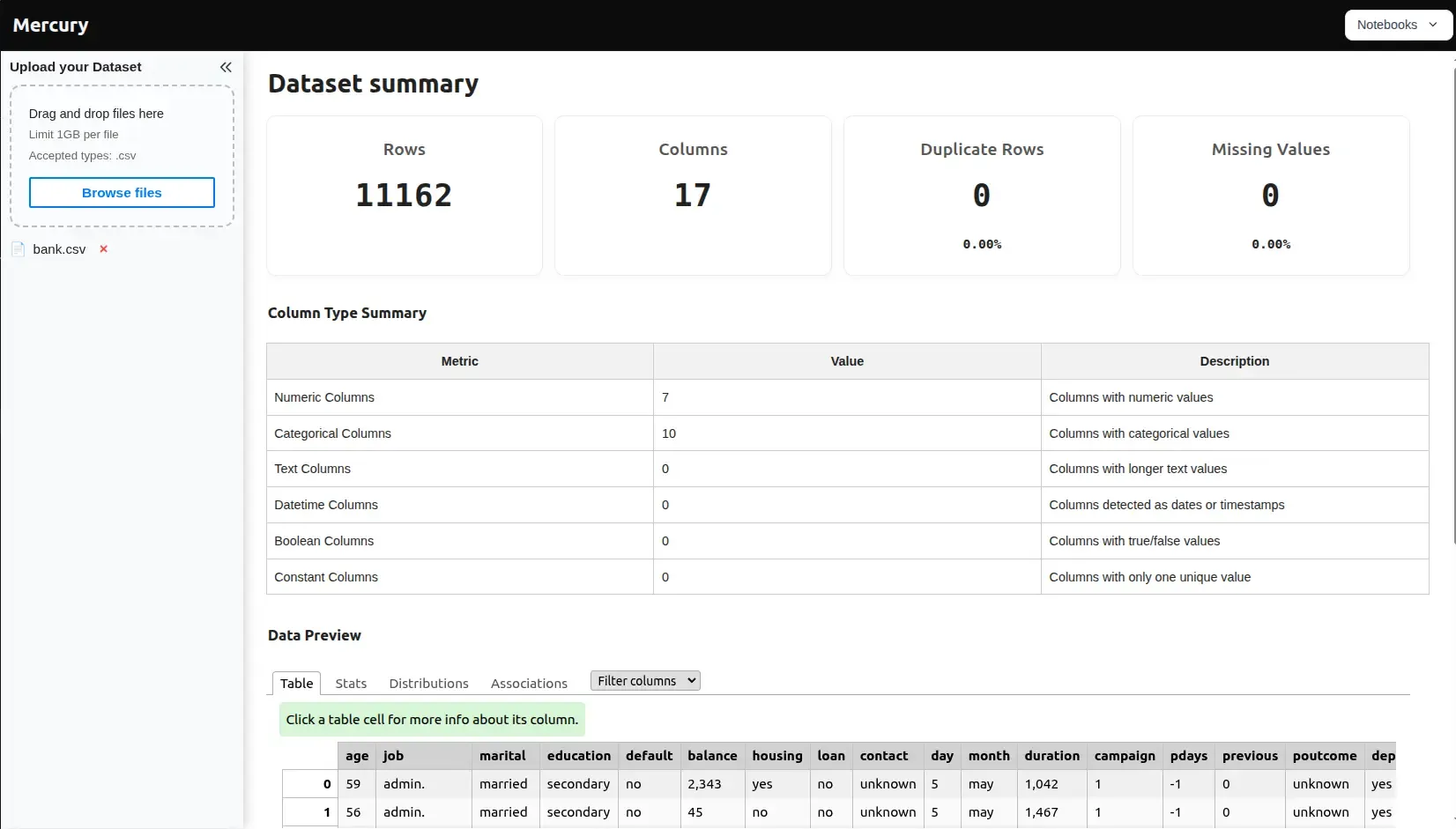
No code, no terminal, no pandas knowledge required from the user. Just upload and read.
We will use:
- pandas for reading and analysing the CSV,
- skrub for the interactive data preview table,
- Mercury to turn the notebook into a web app.
The full notebook code is available in our GitHub repository.
You can also try the live demo.
What the app shows
Section titled “What the app shows”After the user uploads a CSV, the app displays three sections:
- Key indicators — rows, columns, duplicate rows (with %), missing values (with %).
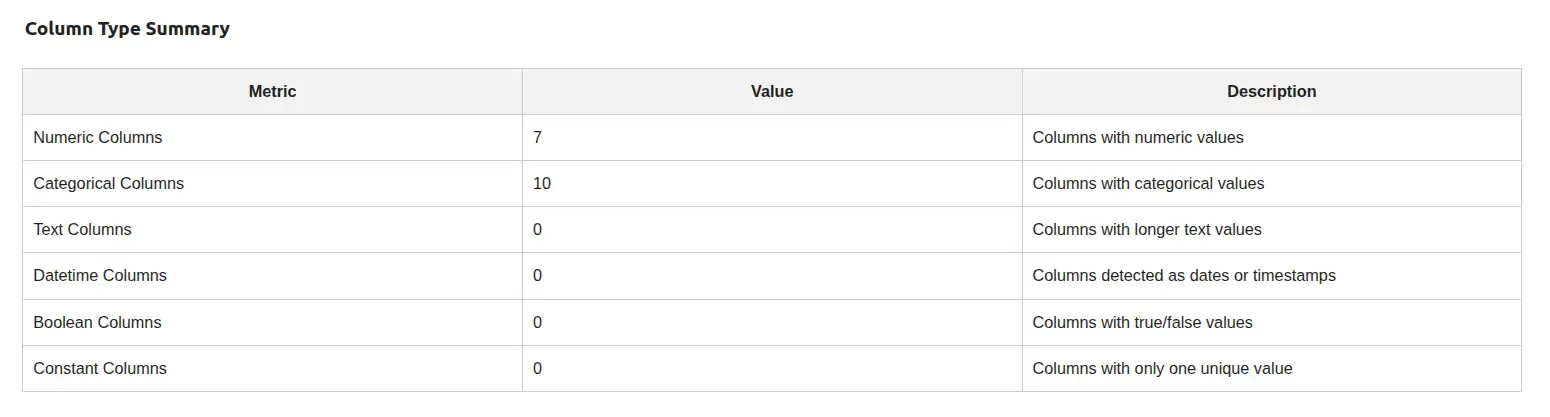
- Column type summary — a table breaking down how many columns are numeric, categorical, text, datetime, boolean, or constant.
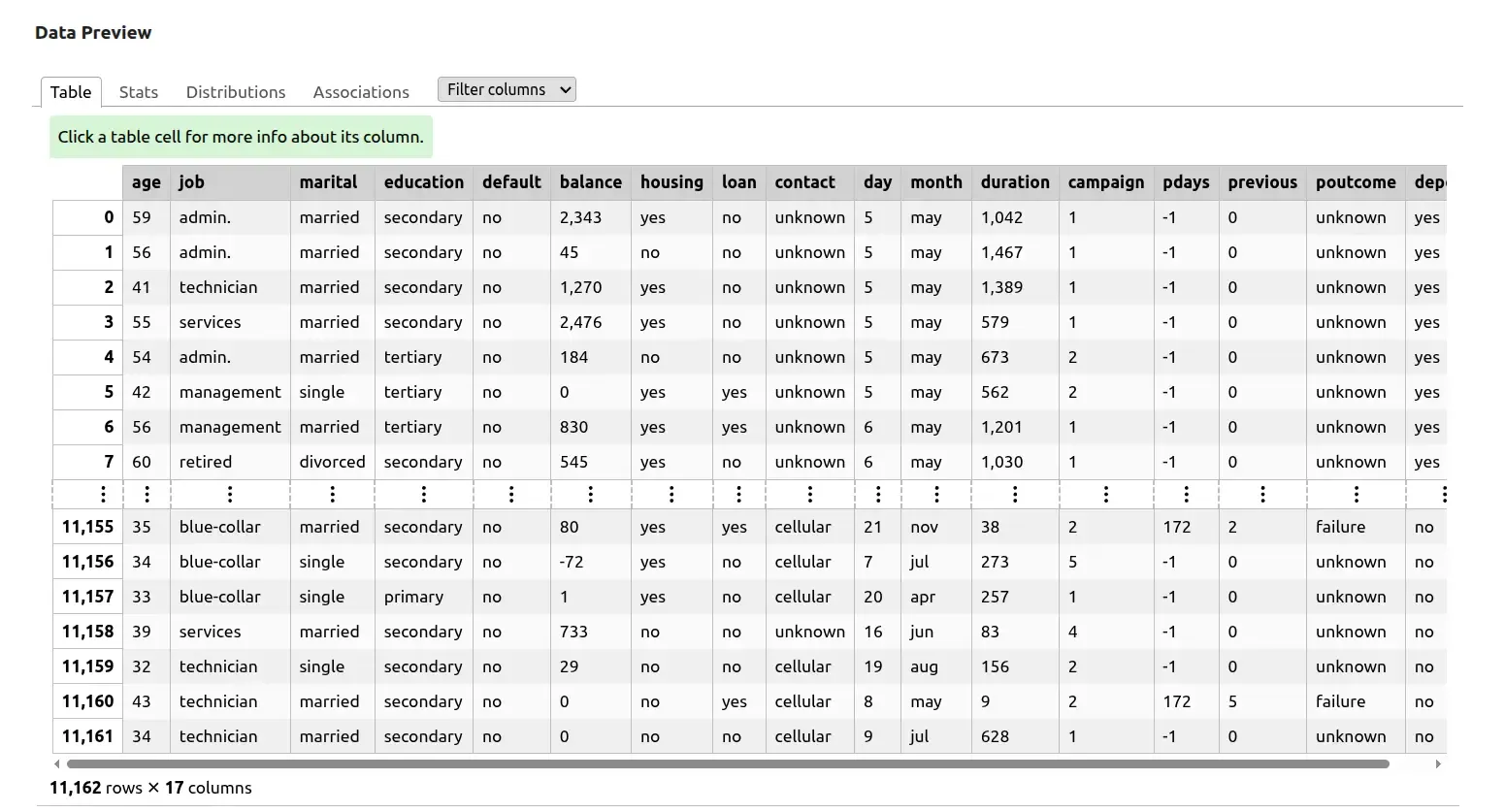
- Data preview — an interactive table with the first 15 rows, powered by skrub’s
TableReport.
1. Install packages
Section titled “1. Install packages”pip install mercury pandas skrub2. Import libraries
Section titled “2. Import libraries”import mercury as mrfrom IPython.display import clear_output3. Add the file upload widget
Section titled “3. Add the file upload widget”input_file = mr.UploadFile(label="Upload your Dataset", accept='.csv', max_file_size='1GB')UploadFile renders a file picker in the app sidebar.
We restrict it to .csv files and allow up to 1 GB.
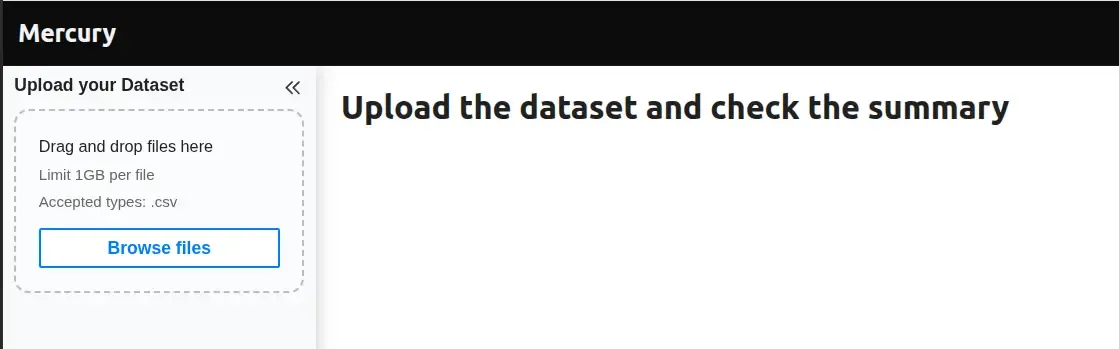
When the user picks a file:
input_file.namebecomes the filename (non-empty string),input_file.valuecontains the raw file bytes.
Mercury automatically re-runs the notebook when the upload changes, so all cells below react immediately.
4. Read the CSV
Section titled “4. Read the CSV”if input_file.name is not None: import pandas as pd from io import BytesIO from skrub import TableReport data = BytesIO(input_file.value) df = pd.read_csv(data)We wrap the raw bytes in BytesIO so pandas can read them directly, without saving the file to disk first.
5. Compute the summary statistics
Section titled “5. Compute the summary statistics”if input_file.name is not None: # shape row_count = df.shape[0] col_count = df.shape[1]
# missing values missing_count = df.isna().sum().sum() missing_procent = df.isna().mean().mean() * 100
# duplicates duplicates_count = df.duplicated().sum() duplicates_procent = (duplicates_count / row_count) * 100Straightforward pandas — nothing unusual here. We keep both the raw counts and percentages so we can show both in the indicators.
6. Detect column types
Section titled “6. Detect column types”This is the most interesting part of the app. We go beyond pandas’ built-in dtypes to catch edge cases.
# basic pandas types numeric_columns = df.select_dtypes(include=["number"]).columns.tolist() boolean_columns = df.select_dtypes(include=["bool"]).columns.tolist() datetime_columns = df.select_dtypes(include=["datetime", "datetimetz"]).columns.tolist() object_columns = df.select_dtypes(include=["object", "category"]).columns.tolist()Detecting dates stored as text
Section titled “Detecting dates stored as text”A very common real-world problem: date columns that look like "2024-01-15" but are stored as plain strings. Pandas reads them as object dtype and misses them. We catch them manually:
    detected_datetime_columns = []    for col in object_columns:        converted = pd.to_datetime(df[col], errors="coerce")        valid_ratio = converted.notna().mean()        if valid_ratio > 0.8:            detected_datetime_columns.append(col)
    datetime_columns = list(set(datetime_columns + detected_datetime_columns))
If more than 80% of values in a column parse as a valid date, we treat it as datetime.
Detecting free-text columns
Section titled “Detecting free-text columns”Long string columns (descriptions, comments, addresses) shouldn’t be counted as categorical. We separate them out by average string length:
text_columns = [] for col in object_columns: if col not in datetime_columns: avg_text_length = df[col].dropna().astype(str).str.len().mean() if avg_text_length > 30: text_columns.append(col)Constant columns
Section titled “Constant columns”Columns with only one unique value carry no information and are worth flagging:
constant_columns = [ col for col in all_columns if df[col].nunique(dropna=False) <= 1 ]Categorical columns
Section titled “Categorical columns”Everything that doesn’t fall into numeric, boolean, datetime, or text:
excluded_from_categorical = set( datetime_columns + text_columns + boolean_columns + numeric_columns ) categorical_columns = [ col for col in all_columns if col not in excluded_from_categorical ]7. Build the output widgets
Section titled “7. Build the output widgets”Indicators
Section titled “Indicators” ind_basic = mr.Indicator([ mr.Indicator(value=row_count, label="Rows"), mr.Indicator(value=col_count, label="Columns"), mr.Indicator(value=duplicates_count, label="Duplicate Rows", delta=f"{duplicates_procent:.2f}%"), mr.Indicator(value=missing_count, label="Missing Values", delta=f"{missing_procent:.2f}%"), ])Indicator displays a big number with an optional delta label below it. Nesting multiple Indicator objects inside one renders them side by side.

Column type table
Section titled “Column type table” data = { "Metric": ["Numeric Columns", "Categorical Columns", "Text Columns", "Datetime Columns", "Boolean Columns", "Constant Columns"], "Value": [len(numeric_columns), len(categorical_columns), len(text_columns), len(datetime_columns), len(boolean_columns), len(constant_columns)], "Description": [ "Columns with numeric values", "Columns with categorical values", "Columns with longer text values", "Columns detected as dates or timestamps", "Columns with true/false values", "Columns with only one unique value", ] } col_type_table = mr.Table(data)Table renders a plain dict or DataFrame as a clean HTML table.
Data preview
Section titled “Data preview” report = TableReport(df, n_rows=15) display(report)TableReport from skrub renders an interactive table with per-column statistics, sortable headers, and value distributions. It does a lot of work for one line of code.
8. Conditional display
Section titled “8. Conditional display”The last cells switch between the welcome state and the populated state, depending on whether a file has been uploaded:
# welcome messageif input_file.name is None: _ = mr.Markdown("# Upload the dataset and check the summary")else: _ = mr.Markdown("# Dataset summary", key="title")mr.Markdown(...) renders immediately, so no display() wrapper is needed.
Assigning its returned widget to _ prevents IPython from displaying the last
expression a second time.
The same conditional pattern repeats for the indicators, the column type table, and the data preview:
if input_file.name is not None: display(ind_basic)else: clear_output(wait=False)clear_output() hides the cell output entirely when there’s nothing to show, so the app doesn’t leave empty gaps on first load. display(ind_basic) is needed here because ind_basic was created earlier in the computation cell. Mercury widgets created inline display immediately; assign their return values to avoid IPython displaying them again.
9. Run as a web app
Section titled “9. Run as a web app”Start the Mercury server from the folder containing the notebook:
mercuryMercury will detect all *.ipynb files and serve them as web applications.
Notes and tips
Section titled “Notes and tips”- The 80% threshold for datetime detection works well in practice, but you can tune it for stricter or looser detection.
- The text column threshold of 30 characters is a heuristic. Short categoricals like country names average well under 30; free-text fields like comments average well above.
TableReportcan be slow on very large files. Consider addingdf = df.sample(10_000)before calling it if you expect datasets with hundreds of thousands of rows.- To support Excel files as well, add
accept='.csv,.xlsx'toUploadFileand handle both formats withpd.read_csv/pd.read_excelbased oninput_file.name.