Quick Start
By default, Mercury detects all Python notebooks available in the current directory and serves them as web apps. Please run the following command to start the server:
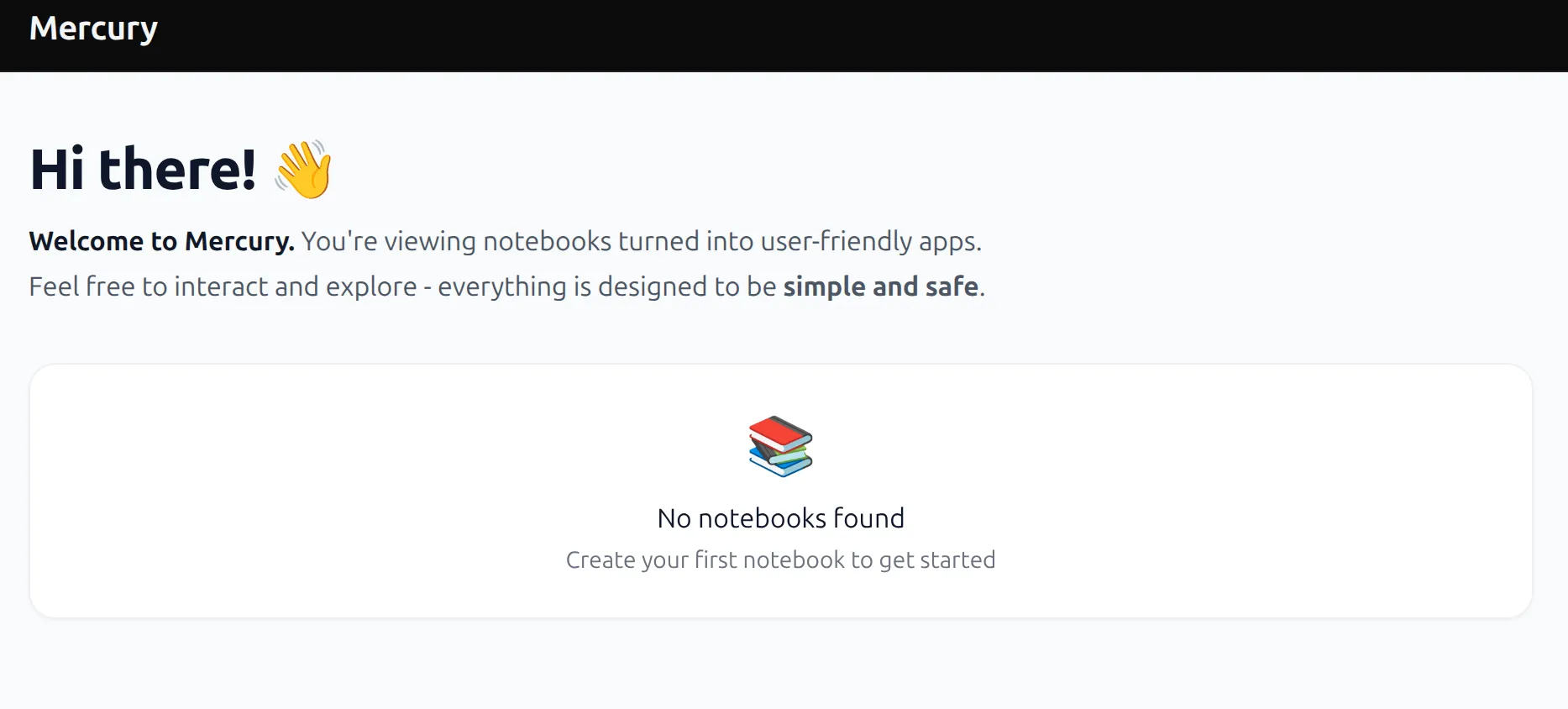
mercuryIt should open a web page at localhost:8888 with information that no notebooks were found. If there are no *.ipynb files in the current directory, you should see:
Create a notebook
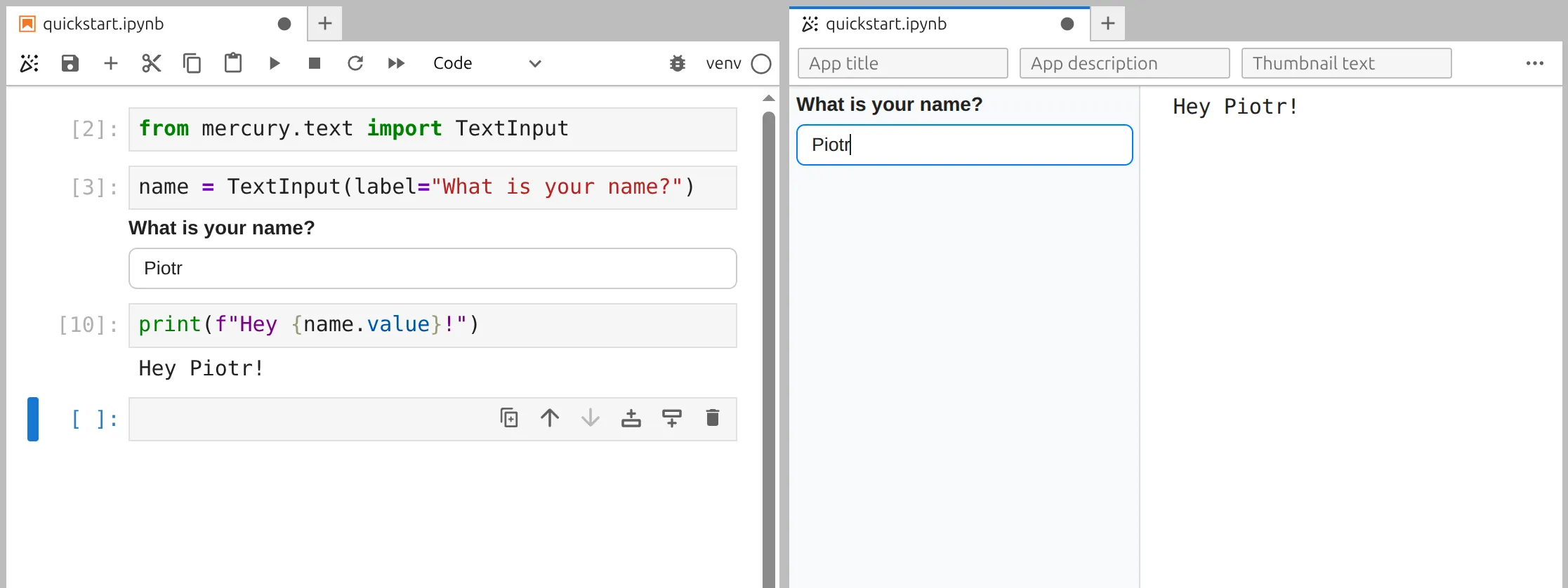
Section titled “Create a notebook”Let’s create a first notebook with TextInput widget. The notebook will ask for user name and display welcome message.
# first cell with importsfrom mercury import TextInput# create interactive widgetname = TextInput(label="What is yout name?")# display widget valueprint(f"Hey {name.value}!")Live preview
Section titled “Live preview”In MLJAR Studio or JupyterLab editor please click on confetti icon in the top toolbar to open a live app preview.
Start server
Section titled “Start server”Start a server with command:
mercuryIf you want Mercury to use a different base directory for notebooks, config.toml, and relative file access, start it like this:
mercury --working-dir /path/to/notebooksYou should see a card with notebook. The title in the card will be the same as notebook filename.

